 BuyBest
Home › Best Monitor for Photo Editing 2026: Measured Colour Picks
Best Monitor for Photo Editing in 2026: Measured Colour, Honest Picks
Here is the finding most photo-monitor lists bury: the majority of photographers need an accurate sRGB screen, not a wide-gamut one. Instagram, client galleries, websites, most labs that print from JPEGs — all sRGB. Adobe RGB earns its money in one place, which is your own inkjet or a fine-art print workflow, because it reaches cyans and greens that good paper can hold and sRGB cannot. So this guide is organised around a question rather than a ranking: where do your pictures end up?
We do not test monitors on a bench and we will not pretend to. Every number here is either the maker's claim, labelled as a claim, or a figure a named reviewer measured with an instrument. Where two labs disagree, you get both. Prices are US street prices checked on 18 November 2026.
Start here: where do your photos end up?
| Your output | Colour space that matters | What to buy |
|---|---|---|
| Web, social, client galleries | sRGB | S2725QS or PA278CV |
| Mostly screens, some lab prints, room to grow | sRGB today, Adobe RGB later | PA279CRV |
| Phones and Macs (Display P3), heavy retouching | Display P3 | PA27JCV |
| One big screen for editing and everything else | sRGB / P3 | U3225QE |
| Your own inkjet, exhibition or paid print work | Adobe RGB, soft-proofed | SW272U |
Prices checked November 2026 — live prices at the retailer may differ.
The six picks, side by side
| Monitor | Panel | Measured gamut (who measured) | Calibration stored in the monitor | Price, Nov 2026 |
|---|---|---|---|---|
| Dell S2725QS | 27" 4K IPS, 163 ppi | 98-100% sRGB, 79% Adobe RGB (MonitorNerds, WIRED) | No | $230-$300 |
| ASUS ProArt PA278CV | 27" 1440p IPS, 109 ppi | 100% sRGB, 81% Adobe RGB (XDA — one lab only) | No | $270-$290 |
| ASUS ProArt PA279CRV | 27" 4K IPS, 163 ppi | ~98% Adobe RGB, ~97% DCI-P3 (DisplayNinja) | Yes | $390-$430 |
| ASUS ProArt PA27JCV | 27" 5K IPS, 218 ppi | 99% sRGB, 87% Adobe RGB, 89% P3 in Native mode (Windows Central) | Not verified | $699-$799 |
| Dell UltraSharp U3225QE | 31.5" 4K IPS Black, 140 ppi | 100% sRGB, 98% DCI-P3, 92% Adobe RGB (PCWorld) | No — ICC profile only | $770-$850 |
| BenQ SW272U | 27" 4K IPS, 163 ppi | 98% Adobe RGB (PCWorld); Delta E 1.07 (Digital Camera World) | Yes — 16-bit 3D LUT | $1,499-$1,550 |
If your photos live on screens
Dell S2725QS — the cheapest sharp, accurate sRGB screen
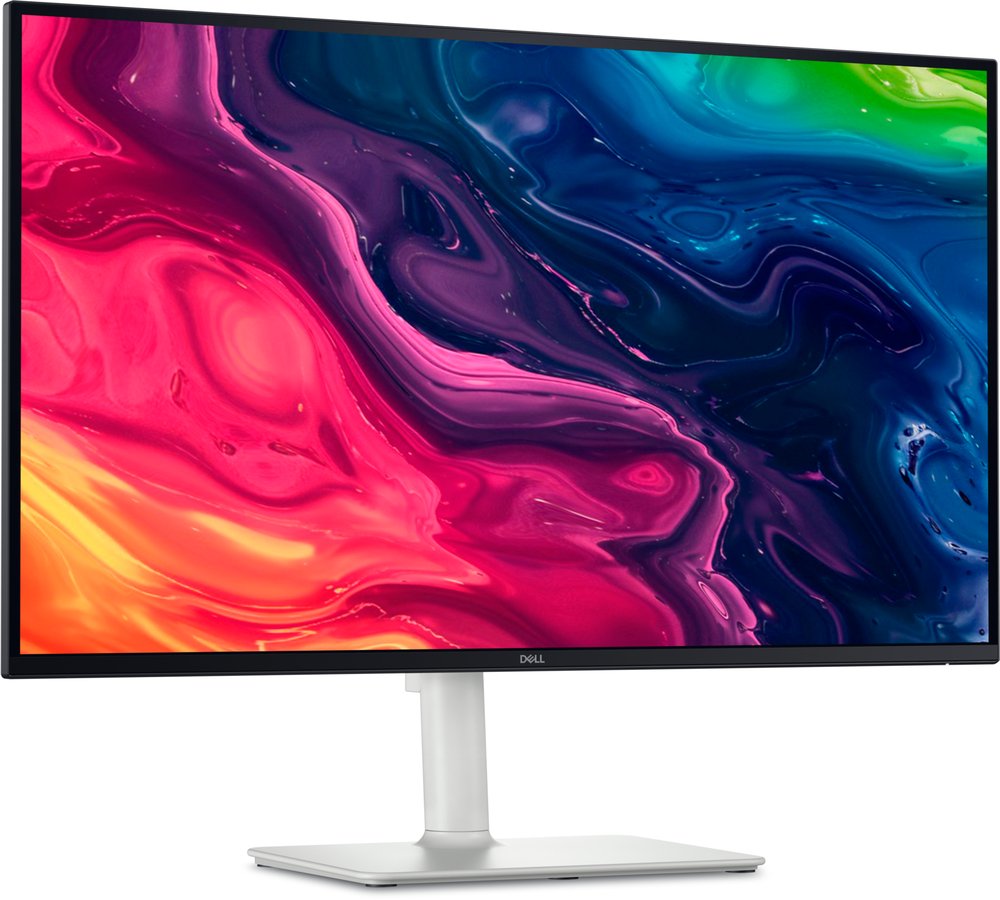
Dell makes one colour promise for this monitor — 99% sRGB — and two independent reviewers found it kept. MonitorNerds measured 98% sRGB with an average Delta E of 1.44 out of the box, dropping to 0.5 after software calibration. WIRED's review measured 100% sRGB, 79% Adobe RGB, an average colour error of 1.16, 355 nits and 1,270:1 contrast. The two labs differ by two points on sRGB; both land on the same verdict, which is that this is a properly accurate sRGB panel at 4K sharpness for the price of an office screen. What it is not: a wide-gamut monitor. MonitorNerds read 75% DCI-P3, and any listing that promises 95% for this model is wrong. It has no USB ports at all, no factory calibration report and no way to store a calibration inside the monitor. Dell's own store had it at $299.99 on 18 November.
Buy if your pictures are delivered as sRGB files and the budget stops near $300.
Skip if you print your own work, or you want one cable to a laptop.
- Two labs agree on sRGB accuracy
- 4K at 27 inches — you see real detail when sharpening
- 79% Adobe RGB: cannot show what a good printer can print
- No USB, no USB-C, no hardware calibration
ASUS ProArt PA278CV — sRGB plus a laptop dock (one lab only)
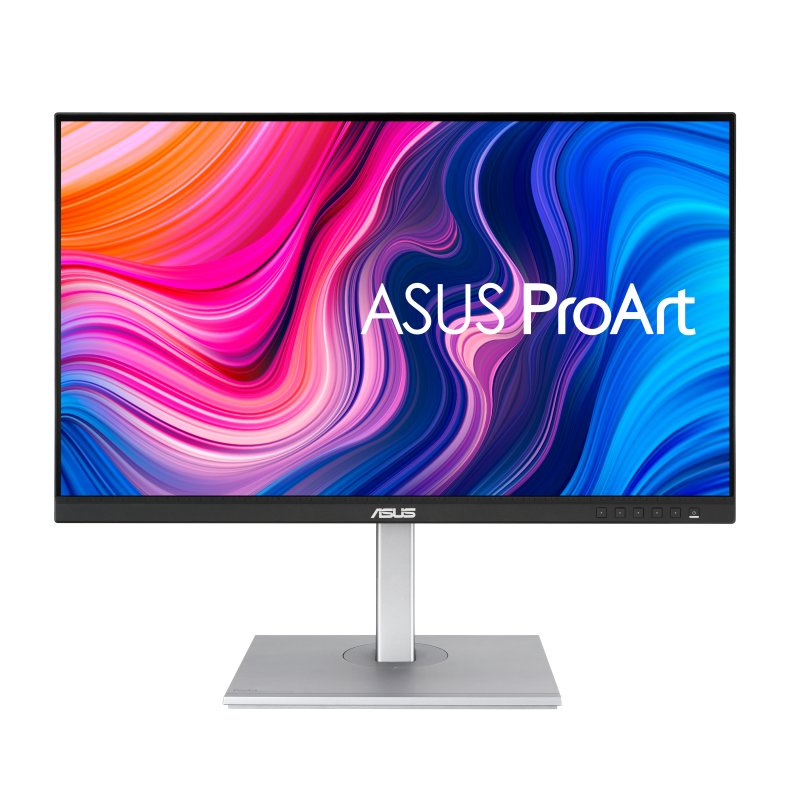
Read this entry with its flag attached: only one independent measurement of this monitor is available to us. XDA bought a retail unit and measured it with a SpyderX Pro colorimeter: 100% sRGB, 81% Adobe RGB, 87% DCI-P3 and about 393 nits, which is brighter than ASUS's 350-nit figure. RTINGS has reviewed it too, but its numbers sit behind a paywall, so we cannot quote them. ASUS's factory-calibrated Delta E under 2 is therefore a claim on this page, not a measurement. Why list it anyway? Because of what surrounds the panel: USB-C with 65W charging, two DisplayPorts, four USB-A ports, a height-adjustable stand and a three-year warranty at about $279 on ASUS's US store. For a photographer on a laptop, that is a tidy one-cable desk. The limits are plain. It is 1440p, so 109 ppi — softer than the Dell above. It is an 8-bit panel. It has a DCI-P3 preset that covers only 87% of DCI-P3, and no Adobe RGB preset at all. XDA also called the contrast lacking. ASUS lists security-update support for this 2021 model as ending on 31 December 2026.
Buy if you edit for the web on a laptop and want charging and a hub in the screen.
Skip if you can use DisplayPort — the 4K Dell is sharper for similar money.
- 100% sRGB measured, with USB-C 65W and a real stand
- Factory calibration report in the box
- Single-lab colour record; Delta E is ASUS's claim only
- 109 ppi, 8-bit, and a P3 preset that falls short
No pick: an Adobe RGB monitor under $300
We looked, and there is not one we can sign. The two best-documented screens in this band measure 79% and 81% Adobe RGB. Budget monitors that advertise an Adobe RGB mode are selling a menu item, not coverage: IT Pro measured the ASUS PA278CFRV at about 83% Adobe RGB in its Adobe RGB mode, with an average Delta E of 2.1 and a peak of 6.9. If print is the goal and $300 is the ceiling, buy an accurate sRGB screen, send sRGB files to your lab, and save toward the next monitor down this page.
The one most photographers should buy
ASUS ProArt PA279CRV — wide gamut and real calibration for about $400
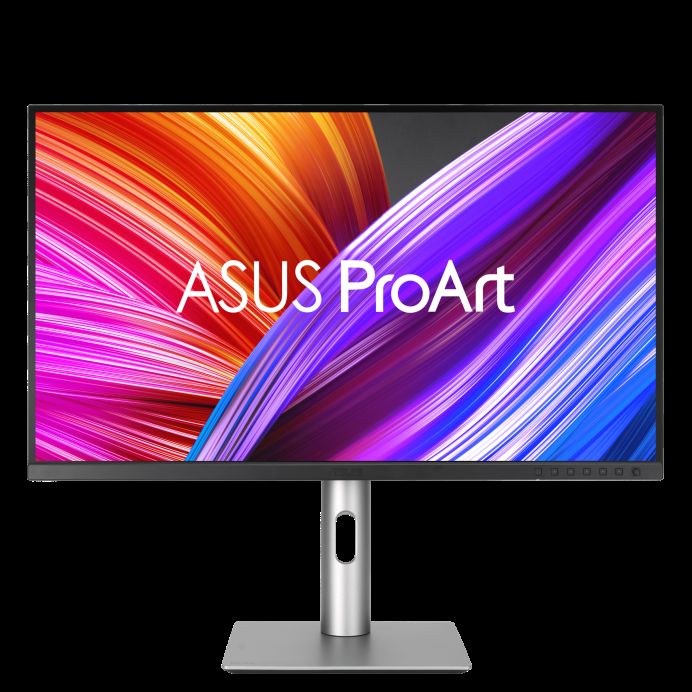
This is where Adobe RGB starts being true. ASUS claims 99% Adobe RGB and 99% DCI-P3; DisplayNinja measured roughly 98% Adobe RGB and about 97% DCI-P3, with an average Delta E of 0.58 in the Adobe RGB preset and 0.8 in sRGB. Les Numériques, measuring its own way, recorded a Delta E of 1.7, 359 nits and a maximum brightness deviation of 5% across the panel. The two labs do not match on Delta E, and both figures are comfortably below the point where the eye notices. The feature that matters as much as the gamut: ASUS's calibration software writes the correction into the monitor, so the profile follows the screen rather than living on one computer. The trap is the mode you leave it in. In Native mode DisplayNinja measured a maximum Delta E of 4.49 — the accuracy belongs to the presets. Pick sRGB for web work and Adobe RGB when you soft-proof, and it behaves like a far dearer screen. USB-C carries 96W and the warranty is three years. B&H listed it at $429.00 on 18 November.
Buy if you want one monitor that covers web work now and print later.
Skip if you would never switch presets — an sRGB screen is simpler and cheaper.
- About 98% Adobe RGB measured, Delta E under 1 in presets
- Hardware calibration and 96W USB-C under $430
- Native mode is inaccurate (max Delta E 4.49 measured)
- Its HDR badge is an edge-lit label — ignore it for stills
For retouching detail and Mac desks
ASUS ProArt PA27JCV — 5K for pixel-level work
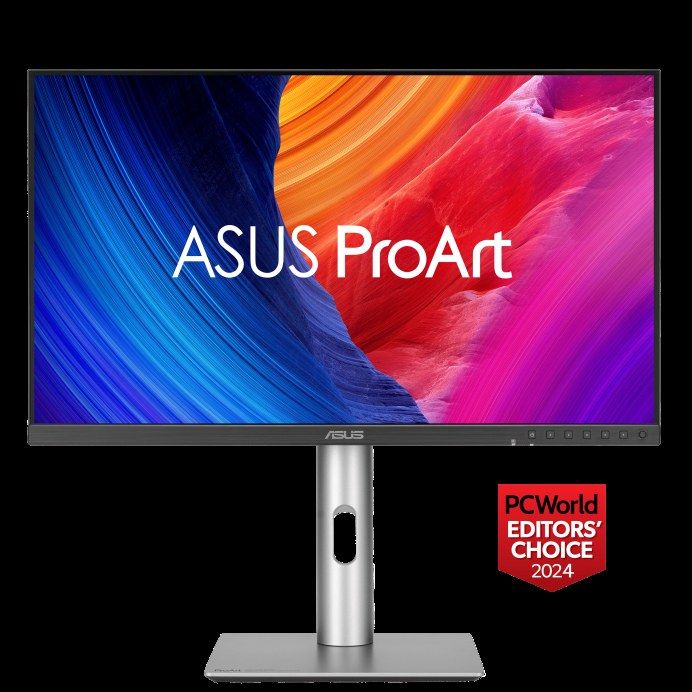
Buy this one for its pixels, not its print gamut. A 27-inch 5K panel is about 218 pixels per inch — double the PA278CV — so a 45-megapixel file shows far more of itself at 100%, and skin work or dust-spotting is done on something close to the grain of the picture. On a Mac it runs at exact 2x scaling, the same way the built-in display does. The colour record needs reading carefully. ASUS claims 95% Adobe RGB. Windows Central's colorimeter read 99% sRGB, 87% Adobe RGB and 89% P3 in Native mode, rising to 97% P3 in the DCI-P3 preset, and measured 550 nits. So: an excellent sRGB and Display P3 screen, and not a proofing monitor for Adobe RGB print. We could not verify its warranty term or whether a calibration can be stored in the monitor, so neither is claimed here. B&H listed it at $699.00 on 18 November.
Buy if you retouch high-resolution files, or you edit on a Mac and want Retina sharpness.
Skip if Adobe RGB print matching is the point — the cheaper PA279CRV covers more of it.
- 218 ppi — the most detail per inch on this page
- 97% P3 measured in its P3 preset; 550 nits measured
- 87% Adobe RGB measured against a 95% claim
- USB-C is 96W, not Thunderbolt
Pairing with a Mac mini or MacBook: Apple's own screens use Display P3, so a P3-capable monitor keeps the external display and the laptop panel in the same family. A Mac mini has no screen to compare against, which makes sharpness the main decision — 5K if you can, 4K otherwise, and not 1440p at 27 inches. The full scaling maths, charging wattages and the Studio Display question are in our guide to monitors for Mac. The short version on Apple's Studio Display ($1,549-$1,599): lovely and glossy, with a matte nano-texture option that costs extra, and we found no independent gamut measurement to print for the 2026 model.
If you want 32 inches
Dell UltraSharp U3225QE — the big screen, with one honest gap
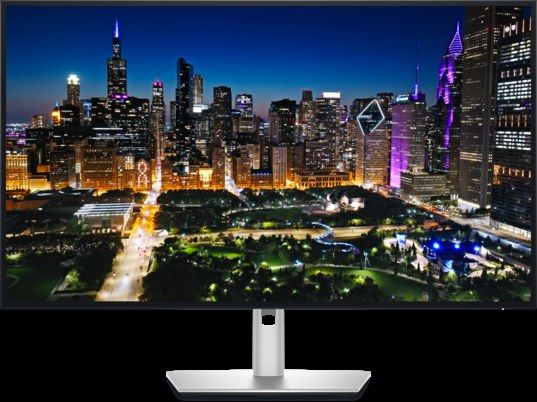
A 32-inch 4K screen gives you a bigger picture with room for Lightroom's panels either side, at about 140 ppi. PCWorld measured this one at 100% sRGB, 98% DCI-P3 and 92% Adobe RGB, with 469 nits. That is a wide, well-behaved panel and a very good everyday editor. The gap: it has no hardware calibration. Dell's software can profile it with a colorimeter, but the result is an ICC profile on your computer, not a correction stored in the screen. Dell's Delta E under 1.5 figure is also a claim — we found no lab that published a measured average. And 92% Adobe RGB is close, not complete, so it is not the screen to trust for a critical print match. Mac owners should know Dell has published an advisory (KB 000356362) about USB speed and wake problems on Macs, fixed by a firmware update.
Price note, 18 November 2026: Dell's own store had it at $969.99 — well above the range we print. Adorama listed it at $789.00 and Target at $799.99, both in stock, so the $770-$850 range stands. Do not buy it from Dell direct this week without checking the others.
Buy if you want size, a Thunderbolt dock and accurate screen colour in one monitor.
Skip if you need the calibration to live in the monitor, or full Adobe RGB.
- 100% sRGB and 98% DCI-P3 measured
- Thunderbolt 4 with 140W charging; 3-year warranty
- No hardware calibration
- 92% Adobe RGB; the Delta E figure is Dell's claim
If you sell prints
BenQ SW272U — the print and soft-proofing monitor
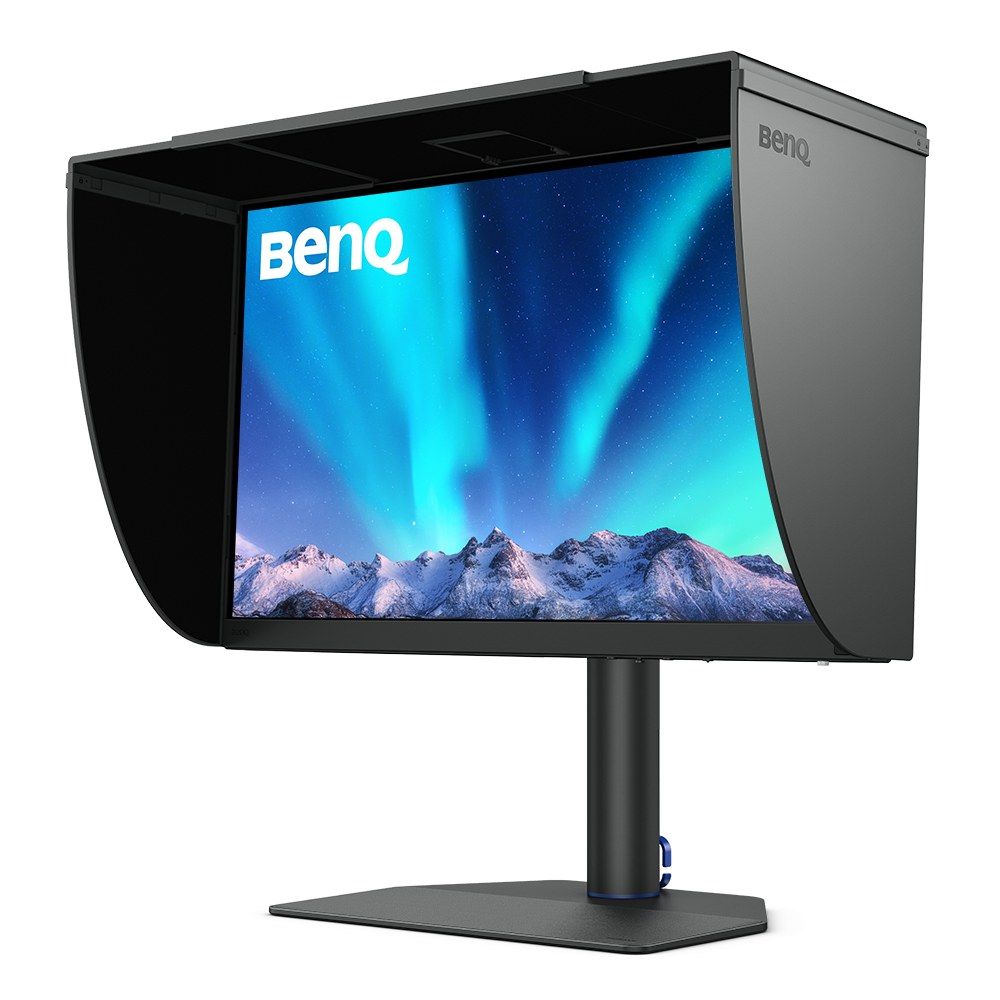
Three things separate a print monitor from a good monitor, and this is the only screen on the page with all three on record. First, gamut: PCWorld measured 98% Adobe RGB, 99% sRGB and 90% DCI-P3 in its default Adobe RGB-targeted profile. Digital Camera World's own test produced 89% Adobe RGB — but that reading was taken in the P3 preset, and the reviewer says it would likely have scored higher in the matching one. We print both and trust the like-for-like figure. Second, accuracy: Digital Camera World measured an average Delta E of 1.07, better than BenQ's 1.5 claim. Third, uniformity, the number most spec sheets leave out: the same lab found a maximum brightness deviation of 7-8% across the panel and a maximum colour deviation of Delta E 2.7. Calibration goes into a 16-bit 3D LUT inside the monitor, a shading hood is in the box, and BenQ's Paper Color Sync software is built for matching screen to paper. The honest costs: PCWorld called contrast its biggest flaw (1,010:1 in its HDR test), TechRadar reports the 10-bit colour is 8-bit plus dithering, and its HDR support is an HDR10 and HLG signal on an SDR-class panel. No colorimeter is included. BenQ's US store listed it at $1,499.99 on 18 November.
Buy if a print that does not match the screen costs you money or reputation.
Skip if your work stays on screens — the PA279CRV does that job for a quarter of the price.
- 98% Adobe RGB and Delta E 1.07, both lab-measured
- Published uniformity record; 16-bit 3D LUT; hood included
- Ordinary IPS contrast; 8-bit plus FRC per TechRadar
- You still have to buy the colorimeter
Why there is no $800 print pick right now
The obvious middle step used to be BenQ's SW272Q, a 1440p version of the monitor above, and the smaller SW242Q. Both showed as discontinued in the US when we checked on 18 November 2026, so neither can be a recommendation. The replacement, the SW272QN, was listed at $799.99 at B&H and Adorama the same day, and the listed specs are strong: 99% Adobe RGB, a 16-bit 3D LUT and hardware calibration. But we could not find a single independent measurement of it, and this site does not pick monitors from a spec sheet. For the record, PCWorld measured the outgoing SW272Q at 98% Adobe RGB with 244 nits and 710:1 contrast — a reminder that paper-like matte coatings cost contrast. When a lab measures the SW272QN, this slot gets filled.
Which BenQ line? SW is the photographer line: Adobe RGB coverage, hardware calibration, hoods. PD is the designer line, built around sRGB and P3 with laptop docking; BenQ's own figures put the PD3225U at 90% Adobe RGB. We have not gathered lab data on the PD models, so that is a signpost, not a verdict.
What about OLED?
For stills, OLED is a compromise, and the reasons are specific. Photo editors hold the same toolbars and panels on screen for hours, which is the worst case for burn-in. Full-screen brightness is limited — a bright, mostly white image is exactly what an OLED dims. And gaming OLEDs such as the MSI MPG 272URX ship with presets tuned for games and offer no way to store a calibration in the monitor. If you want OLED anyway, the one built for colour work is the ASUS ProArt PA32UCDM ($1,599-$1,699): Tom's Hardware measured over 105% of DCI-P3 by volume and found its presets on target, it has hardware calibration, and its full-screen brightness sits near 250 nits. TechRadar's spec box lists 95.7% Adobe RGB for it; we have no second measurement, so treat that as one source. It is a superb grading screen — our video-editing guide covers it properly — and a second choice behind the BenQ for print.
The four things that actually decide a photo monitor
sRGB, Adobe RGB and Display P3 in plain words
sRGB is the colour space of the web and of nearly every file you will hand to a client. Adobe RGB is larger, mostly in greens and cyans, and matters when the output is ink on paper. Display P3 is larger than sRGB in a different direction, toward reds and greens, and is what recent iPhones and Macs show. A screen that covers a bigger space is not automatically better: view an sRGB photo on a wide-gamut monitor without colour management and it looks oversaturated. If you do not profile your screen, use its sRGB preset. Also check whether a percentage is coverage or volume — a monitor can report over 100% volume and still miss part of the space.
Hardware calibration, software calibration, and the tool nobody includes
Software calibration measures the screen and saves a profile on your computer. It works well for one screen on one machine — the Dell S2725QS reached Delta E 0.5 that way. Hardware calibration writes the correction into the monitor's own lookup table, so it survives a new laptop, a second computer or a reinstall, and it leaves the graphics card's output untouched. On this page the PA279CRV and SW272U have it. Either way you need a colorimeter, and none of these six monitors comes with one. A factory report is a good start, not a substitute: it describes one preset on the day the unit left the line.
Uniformity
If the corners are dimmer than the centre, a sky you evened out on screen will not be even in print. This is rarely on a spec sheet and it sinks otherwise good monitors. Dell's UltraSharp U2725QE measures 94% Adobe RGB (IT Pro) and looks like a photo bargain, yet IT Pro found edges and corners up to 15% dimmer, and Expert Reviews found 10 of 24 zones about 10% dimmer and called it a deal breaker for colour-critical work. That is why it is not a pick here. Uniformity correction has a price as well: PCWorld measured BenQ's SW242Q falling from 410 to 198 nits with its uniformity mode on.
Soft-proofing and print brightness
The most common print complaint — prints come out too dark — is usually a screen set too bright. Paper only reflects the light in the room; a monitor at full power is a lamp. For print work, turn the brightness well down, keep the room lighting steady, and use the soft-proof view in Lightroom Classic or Photoshop with the paper's ICC profile loaded. Soft-proofing can only show a colour your monitor can display, which is the whole argument for Adobe RGB coverage in a print workflow, and for nothing else.
Smaller questions, answered quickly
Matte or glossy? Matte, for most rooms. Reflections change how dark tones look from hour to hour. The BenQ's fine matte coating is the most paper-like here, and it pays for that in contrast.
27 or 32 inches? At 27 inches, 4K gives about 163 ppi and 5K about 218; at 32 inches, 4K gives about 140. A 32 shows a bigger image, a 27-inch 4K or 5K shows a finer one. If you retouch, go finer. If you cull and grade, go bigger. Our size guide draws both to scale, and the PPI calculator does the sum for any size.
Is 1440p enough? For learning and web work, yes. At 109 ppi you will zoom more often to judge sharpening, and that is the real cost.
Curved? Not for photos. A curve bends the straight lines you are trying to judge — our curved vs flat explainer has the detail.
Lightroom and Photoshop settings? Both are colour-managed and read your monitor profile on their own. Export for the web in sRGB. Keep Adobe RGB or ProPhoto for your working files only if the monitor and the printer can use them.
Refresh rate and HDR badges? Neither helps a still image. An edge-lit DisplayHDR 400 or 600 label adds nothing to photo editing.
And for graphic design?
Design work shifts the weight a little. Text and vector edges are on screen all day, so pixel density matters more than it does for photographs, and most design output is for screens, where sRGB and Display P3 are the targets. For interface and web design, the S2725QS or, on a Mac, the PA27JCV are the sharp choices. Brand and packaging work that goes to a commercial printer is a CMYK job: a wide-gamut, hardware-calibrated screen such as the PA279CRV lets you soft-proof against the printer's profile, and a physical swatch book still has the last word on spot colours. Illustrators working on large artboards tend to prefer the 32-inch U3225QE for the space. Maker badges such as Calman Verified or Pantone Validated tell you a model was checked against a standard; they are not a measurement of the unit on your desk.
The ceiling
Above everything on this page sit monitors like Eizo's ColorEdge CG2700X, which has a calibration sensor built into the bezel and, by Eizo's figures, 99% Adobe RGB. It is priced far above the BenQ, and we have only the maker's claims for it, so it is named here for completeness and not picked. If your studio needs one, you already know.
Editing footage as well as stills? The priorities change to Rec.709, DCI-P3 and HDR — see the best monitors for video editing. To put any two of these screens next to each other, use the compare tool.
Update history
November 19, 2026: Apple Studio Display price corrected to $1,549-$1,599 sitewide.
November 18, 2026: Published: six photo-editing picks sorted by output — sRGB, Display P3 or Adobe RGB print — with every gamut figure attributed to the lab that measured it, a single-lab flag on the ASUS PA278CV, a no-pick box for Adobe RGB under $300, and the BenQ SW272Q and SW242Q noted as discontinued in the US.
Sources checked
Specs and prices in this guide were checked against these sources in November 2026 — the manufacturer's own listing plus an independent lab or reviewer, per our two-source rule.
- Dell S2725QS — official product page
- WIRED — Dell 27 Plus 4K S2725QS review (measured)
- ASUS ProArt PA278CV — official specifications
- XDA — ASUS ProArt PA278CV review (colorimeter figures)
- ASUS ProArt PA279CRV — official specifications
- ASUS ProArt PA27JCV — official product page
- Windows Central — ASUS ProArt PA27JCV lab review
- Dell UltraSharp U3225QE — official product page
- PCWorld — Dell UltraSharp U3225QE lab review
- BenQ SW272U — official specifications
- Digital Camera World — BenQ SW272U lab review
- PCWorld — BenQ SW272U review (measured)
- TechRadar — BenQ SW272U review
- PCWorld — BenQ SW272Q review (discontinued model)
- PCWorld — BenQ SW242Q review (uniformity mode brightness)
- IT Pro — ASUS PA278CFRV review (Adobe RGB mode measured)
- IT Pro — Dell UltraSharp U2725QE review (uniformity)
- Expert Reviews — Dell UltraSharp U2725QE review (uniformity)
- Tom's Hardware — ASUS ProArt PA32UCDM lab review

Akbar Khan Editor, BuyBestMonitor
Akbar has run BuyBestMonitor since its original 2020 launch. Every guide here is checked under the site's two-source rule — manufacturer specs confirmed against an independent lab review — before publication and at every refresh. About the editor · How we check monitors