 BuyBest
Home › Best USB-C Monitors in 2026
Best USB-C Monitors in 2026 — One Cable, Honestly Rated
The only three that qualify
| Pick | Size / Panel | USB-C charging | KVM | Typical price |
|---|---|---|---|---|
| MSI MPG 322URX — best overall | 32" QD-OLED 4K | 98W | Yes | $950-$1,200 |
| Samsung Smart Monitor M7 — budget | 32" VA 4K | 65W | No | $230-$300 |
| MSI G274QPF E2 — the caveat pick | 27" IPS 1440p | 15W | No | $190-$280 |
Prices checked November 2026 — live prices at the retailer may differ.
MSI MPG 322URX — the full one-cable desk
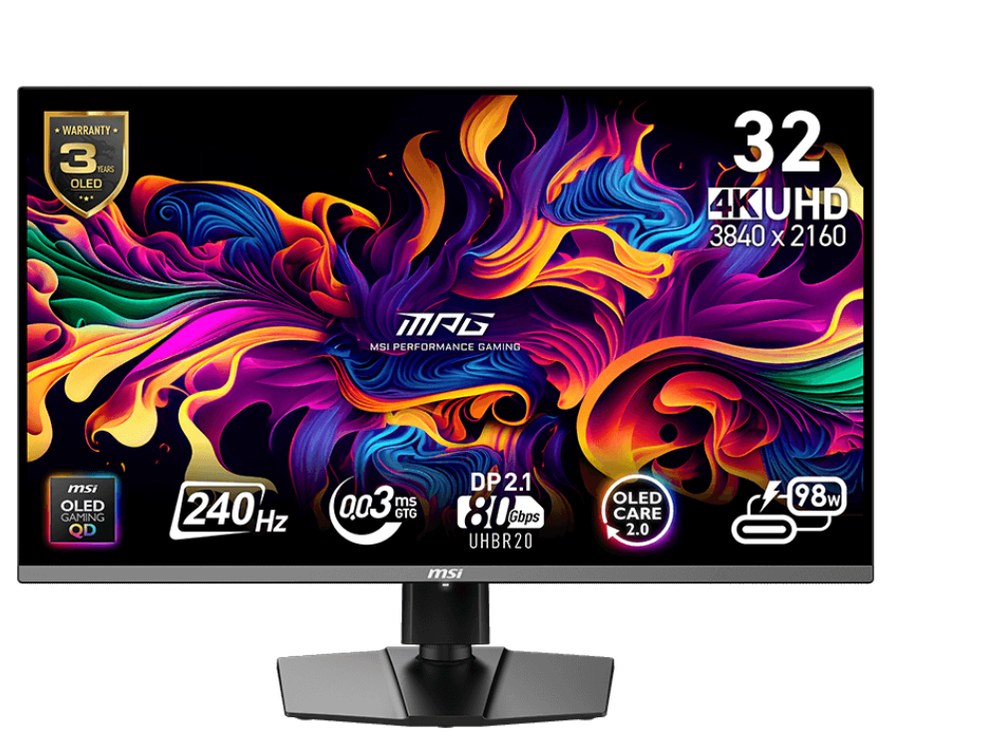
98 watts is enough to charge almost any laptop at full speed while the same cable carries a 4K picture, and the built-in KVM switch lets a second machine share the screen and peripherals. Add the 240Hz QD-OLED panel and this is the monitor our work guide recommends for premium desks too.
Buy if one cable for a powerful laptop is the whole point.
Skip if the same static windows run at full brightness all day, every day.
- 98W charging plus KVM switch
- 3-year warranty includes burn-in cover
- Modest full-screen brightness (~223 nits)
Samsung Smart Monitor M7 — one cable on a budget
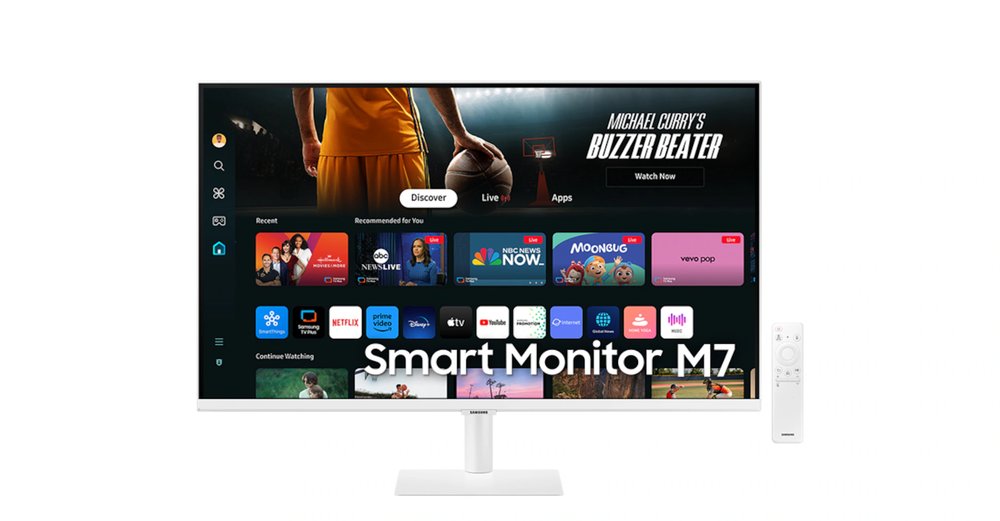
65 watts charges most thin-and-light laptops properly, the 4K VA panel has real contrast (3,000:1), and the built-in smart TV apps cover breaks. The stand is tilt-only — if the height is wrong for you, budget for a monitor arm and it is still the cheapest one-cable setup here.
Buy if you want laptop docking and a smart TV for under $300.
Skip if you game (fixed 60Hz) or need height adjustment.
- 65W USB-C charging
- Remote, apps and speakers included
- Tilt-only stand
MSI G274QPF E2 — the caveat pick
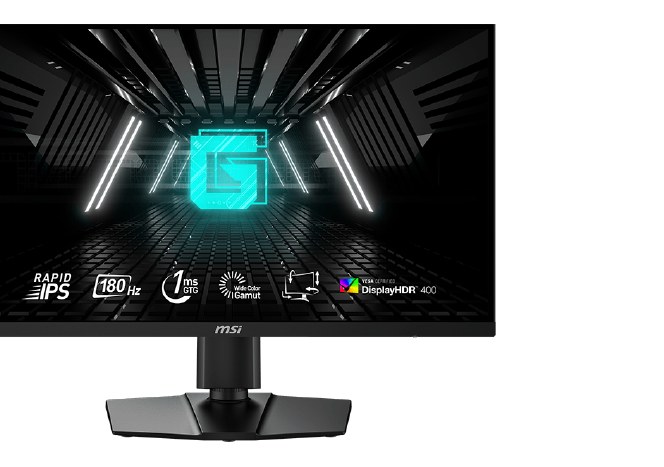
Included with its weakness printed in the table: the USB-C input carries the picture and works beautifully for a single-cable signal, but at 15W it will not charge a working laptop — the battery drains slower, it does not fill. As a 1440p gaming monitor it is our best overall pick; as a docking station, it is not one. If charging matters, choose between the two monitors above.
Buy if you want USB-C video input and charge the laptop separately.
Skip if one-cable charging is the requirement — 15W is not enough.
- Best 1440p gaming package here
- USB-C video input included
- 15W charging cannot sustain a laptop under load
The traps: USB-C ports that are not video inputs
The data-only port. The Dell Alienware AW3425DW in our gaming guide has a USB-C port — for data and charging devices, not for your laptop's picture. Dell's own manual says so; the product photos do not. The missing port. Several excellent monitors here — the LG 34GP83A-B, the Samsung G9 pair, the Dell G2724D and S2725QS — have no USB-C video at all; the S2725QS has no USB of any kind. The wattage gap. 15W (MSI E2), 65W (Samsung M7) and 98W (MSI 322URX) are three different products wearing the same connector: only the last two charge a laptop in real use. Before buying any USB-C monitor, check the manufacturer's spec for three words — "DisplayPort Alt Mode" (or "DP Alt Mode") on the port, and a power-delivery wattage that matches your laptop.
Frequently asked questions
How many watts of USB-C charging does a laptop need?
Most thin-and-light laptops ship with 45-65W chargers, so a 65W monitor keeps them full under load. Larger performance laptops need 90W+. A 15W port, like the MSI E2's, is a video input with incidental power — fine for a phone or tablet, not for charging a working laptop.
What cable do I need for one-cable USB-C video?
A USB-C cable rated for DisplayPort Alt Mode video — most quality USB-C cables qualify, but charge-only cables do not carry a picture at all. If a one-cable setup shows no image, the cable is the first suspect, before the monitor.
What is a KVM switch in a monitor?
Keyboard-Video-Mouse switching: two computers share one monitor and one set of USB peripherals, swapping with a button or automatically when the input changes. The MSI 322URX has one built in; on the other picks you would add a separate switch box.
Does USB-C limit refresh rate or resolution?
It depends on the port's DisplayPort version, not the connector's shape. The 322URX's USB-C input carries its full 4K signal, and the E2's carries 1440p at full refresh — both verified against manufacturer specs. Always check the manual for the USB-C row of the resolution table.
Update history
November 10, 2026: Added a Quick Picks jump bar and price-checked stamps.
November 10, 2026: Slice guide published from the site's two-source checked research, with a Buy if / Skip if verdict on every pick and the USB-C port traps documented.

Akbar Khan Editor, BuyBestMonitor
Akbar has run BuyBestMonitor since its original 2020 launch. Every guide here is checked under the site's two-source rule — manufacturer specs confirmed against an independent lab review — before publication and at every refresh. About the editor · How we check monitors